
|
|
Footprint Options on Left Panel vs Options Config |
Post Reply 
|
| Author | |
Nick B 
Admin Group 

Joined: 02 Jan 2012 Status: Offline Points: 2114 |
 Post Options Post Options
 Thanks(0) Thanks(0)
 Quote Reply Quote Reply
 Topic: Footprint Options on Left Panel vs Options Config Topic: Footprint Options on Left Panel vs Options ConfigPosted: 2 hours 37 minutes ago at 7:48am |
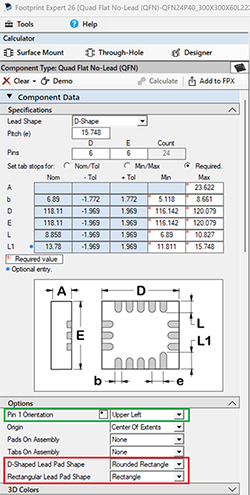
Do not use the Calculator side panel options for production. They are intended to test option features. 1. The only data saved to FPX is: a. Package Dimensions b. Mfr. Recommended Pattern c. 3D Colors assignments d. Manually inserted drafting objects and keepouts All other footprint features are derived for you Master Option file. Create a master option file using "Tools > Options > File Save As > Your Name" Example: you want D-Shaped Pads for some component families. Go to "Tools > Options > Component > QFN" 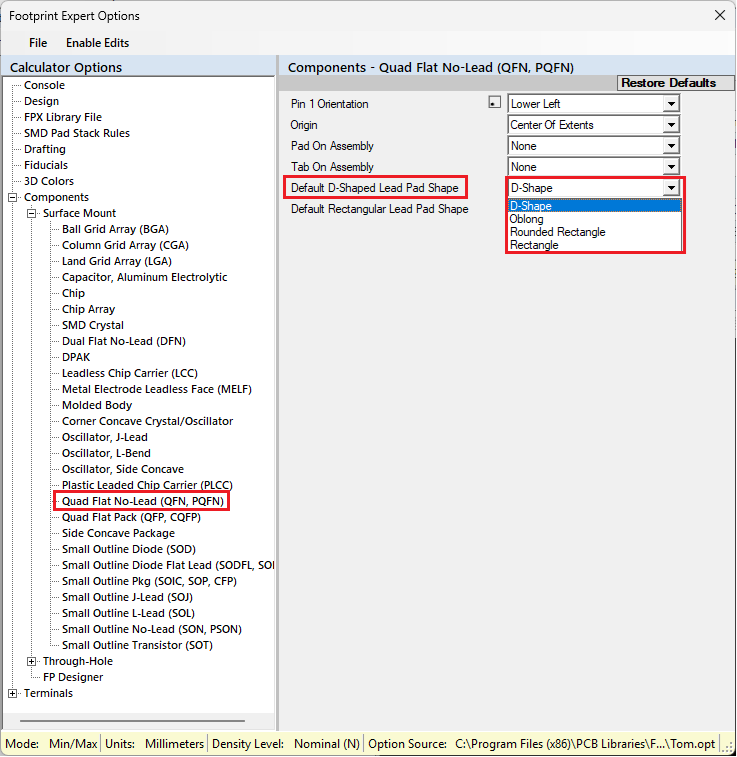 This message will appear and you select 'No' because you don’t want to affect every Component Family. 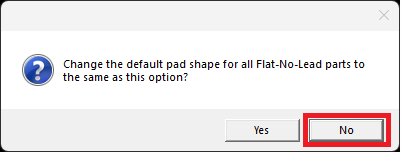 Continue to select each component family and change the pad shape. Save your options and every time you open a QFN it will have D-Shaped pads. |
|
 |
|

|
|
|
|
|
Post Reply
|
|
| Tweet |
| Forum Jump | Forum Permissions You cannot post new topics in this forum You cannot reply to topics in this forum You cannot delete your posts in this forum You cannot edit your posts in this forum You cannot create polls in this forum You cannot vote in polls in this forum |


 Topic Options